How to Color Online on a Tablet or Phone
By the ColorNook editors · Updated 2026-11-29
Online coloring is simple: choose a color, tap a white area, and it fills up to the black lines. It is a mess-free option for car trips, waiting rooms and days when the crayons have gone missing. Here is how our tap-to-fill tool works, how to fix the most common problems, how to save and print your picture, and how to keep screen time in balance.
How tap-to-fill works
Every coloring page on ColorNook has a "Color it online" panel. The picture is clean black line art, and the tool fills whichever enclosed white space you tap, stopping at the lines. That means:
- One tap fills a whole area. No scribbling, no going over the lines.
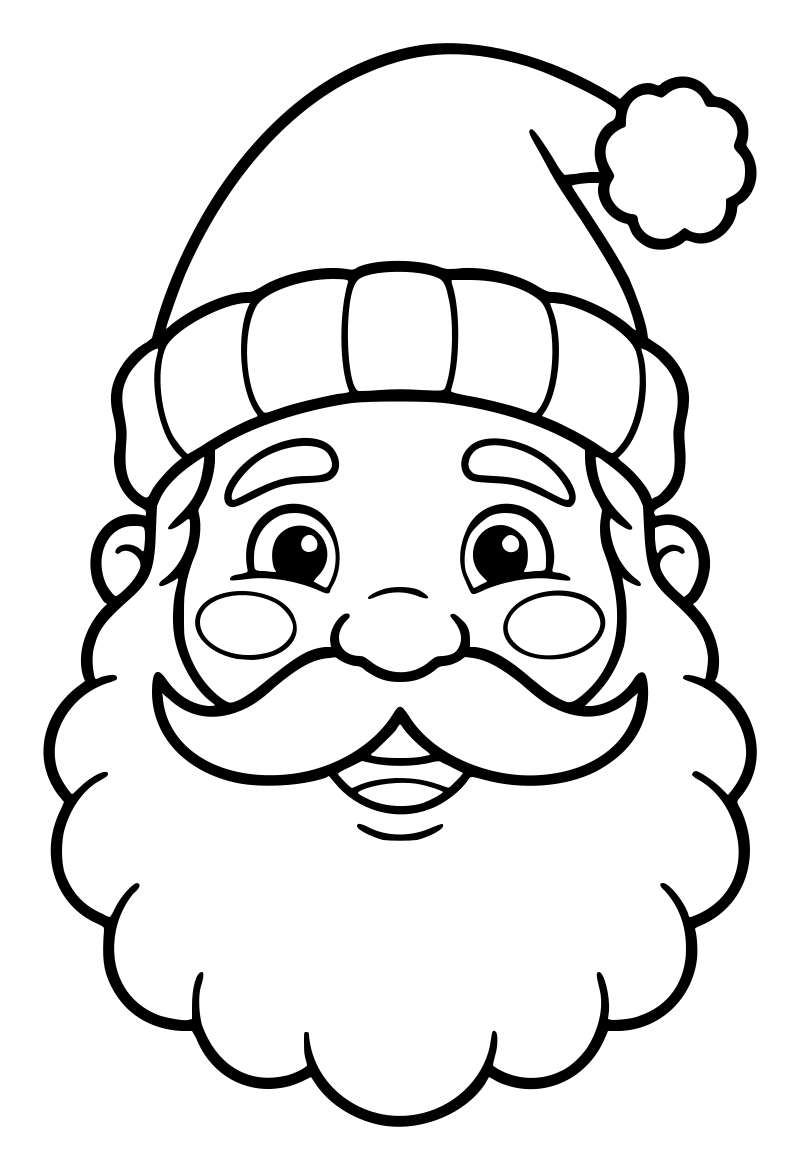
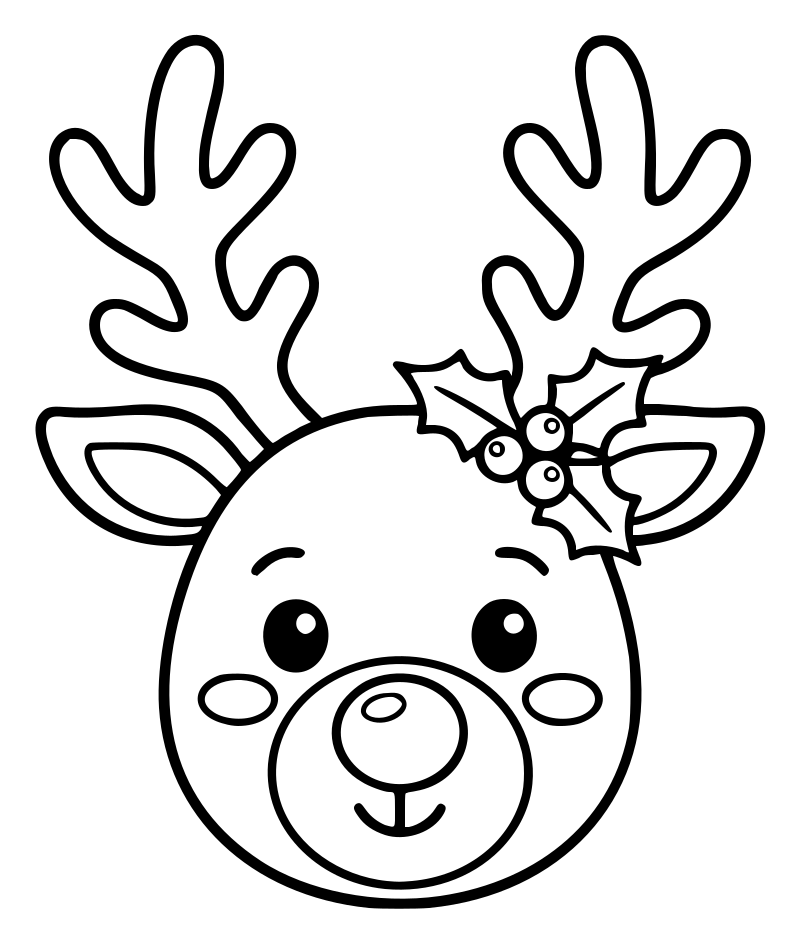
- Big shapes fill fast. Easy pages like the Santa face or the reindeer face are finished in a couple of minutes, which suits younger children.
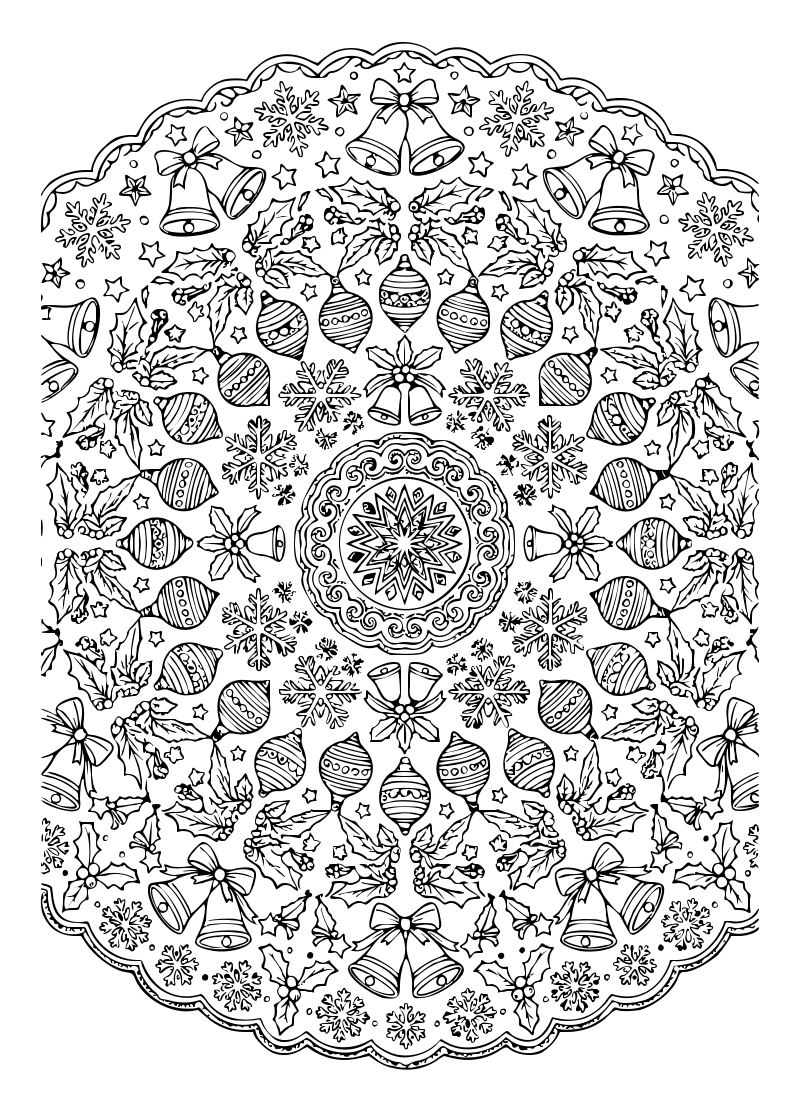
- Detailed pages take patience. A mandala has hundreds of small areas, so zooming in helps.
Step by step
- Open a coloring page and scroll to the canvas.
- Tap a color in the palette, or choose Custom to pick any color you like.
- Tap a white area of the picture. It fills with your color.
- Tap a filled area with a new color to change it.
- Use Eraser to turn an area back to white, Undo to step back, and Start over to clear everything.
- Use + and − to zoom. On a phone, zoom in for small areas and scroll around the picture.
Fixing common problems
Color leaked into the background. The fill spreads until it reaches a line. If two lines almost touch but leave a tiny gap, the color escapes. Tap Undo, zoom in, and fill the areas on both sides of the gap one by one.
The area looks white but will not fill. You may be tapping exactly on a black line. Zoom in and tap the middle of the space.
My finger is too big for tiny spaces. Zoom in two or three steps. On a tablet, a simple stylus also helps.
The page will not load. Refresh the page. If it still fails, try another browser and let us know through the contact page.
Saving and printing what you colored
Under the canvas you will find three buttons:
- Save my coloring (PNG): downloads an image file. On a phone it usually goes to your downloads or files app, where you can add it to your photos or share it.
- My coloring as PDF: creates a Letter-size PDF with your picture centered, ready to print or email.
- Print my coloring: opens the print dialog with just your picture.
If you would rather color by hand, use Print this page next to the preview to print the blank line art. Our printing guide explains paper size and "fit to page."
Ideas that make online coloring more fun
- Color twice: color a page online to plan your colors, then print it blank and copy your plan with real pencils.
- Make a card: save the PNG and drop it into a message or a printed card.
- Family challenge: everyone colors the same page, such as the hot cocoa mug, then compare results.
- Detail mode: older kids and adults can zoom deep into the Christmas mandala and work section by section.
Keeping screen time balanced
Online coloring is calmer than most apps, but it is still screen time. A few guidelines from reliable sources:
- The CDC's milestone tips for 4-year-olds suggest limiting screen time to no more than 1 hour per day of a children's program with an adult present. For 5-year-olds, the CDC suggests no more than 1 hour per day and making a media use plan for your family.
- The CDC also suggests avoiding screens for 1 to 2 hours before bed and keeping screens out of children's bedrooms.
- The American Academy of Pediatrics, through HealthyChildren.org, encourages families to create a family media plan that balances screens with reading, outdoor play, family games and hobbies.
In practice that might mean online coloring for short stretches, such as a car trip or a wait at the doctor's, with paper coloring at home. Paper coloring also gives small hands different practice: holding a crayon, pressing and steering are skills a tap does not build.
Kid-safe tips
- ColorNook has no accounts, chat or uploads. Pictures colored online stay on your device unless you choose to share them.
- Sit with young children the first few times to show them Undo and the palette.
- Use guided access or screen pinning features on tablets if you want a child to stay on one page.
The takeaway
Tap a color, tap an area, and you are coloring. Zoom for small spaces, Undo for slips, and save or print when you are done. Then balance it with paper pages and crayons. Start with an easy Christmas page to get the hang of it.
Frequently asked questions
Do I need an app to color online?
No. ColorNook's coloring tool runs in your web browser on phones, tablets and computers. Open any coloring page, pick a color and tap an area to fill it.
Why did the color fill the whole background?
A fill spreads until it reaches a black line. If an outline has a tiny gap, color can leak through. Tap Undo, zoom in and fill the smaller areas on each side of the gap separately.
Can I print what I colored online?
Yes. Use Print my coloring under the canvas, or save it as a PNG or PDF and print it later.