How to Print Coloring Pages So They Fit the Page
By the ColorNook editors · Updated 2026-11-29
The short answer: choose your real paper size (Letter in the US and Canada, A4 almost everywhere else), set scaling to Fit or Fit to page, and print on plain 20 lb paper for crayons and pencils or light cardstock for markers. Those three settings fix nearly every "half my snowman is missing" problem.
Below is the longer version, with the exact settings to look for and a few ways to save ink when you are printing a stack for a classroom or a rainy afternoon.
Step 1: Match the paper size to what is in your tray
US Letter and A4 look almost the same, but they are not interchangeable. According to HP's paper size reference, Letter (ANSI A) is 8.5 x 11 inches (215.9 x 279.4 mm), while A4 is 8.27 x 11.69 inches (210 x 297 mm). In other words, Letter is a little wider and A4 is a little taller.
| Paper | Inches | Millimeters | Where it is standard |
|---|---|---|---|
| US Letter | 8.5 x 11 | 215.9 x 279.4 | US, Canada |
| A4 | 8.27 x 11.69 | 210 x 297 | UK, Europe, most of the world |
That small difference matters. If a file is laid out for Letter and your printer thinks it is loaded with A4 (or the reverse), the sides or the bottom can be trimmed off. Before you print:
- Open the print dialog (File > Print, or Ctrl + P on Windows and Command + P on a Mac).
- Find Paper size (sometimes under "Page Setup" or "More settings").
- Pick the size that is physically in your printer, not the size you assume the file is.
Step 2: Use "Fit" instead of "Actual size"
This is the setting that causes the most trouble. Most home printers cannot print right to the edge of the sheet, so they leave a white margin. A coloring page that runs close to the edges can lose its outline if it prints unscaled.
Adobe's Acrobat help page describes the main scaling choices you will see under Page Sizing & Handling:
- Fit reduces or enlarges each page to fit the printable area of the paper you selected.
- Actual size prints without scaling, and anything that does not fit is cropped.
- Shrink oversized pages shrinks large pages to fit but does not enlarge small ones.
- Custom Scale resizes by a percentage you type in.
For coloring pages, Fit is the safe choice almost every time. Browsers and other apps use slightly different labels for the same idea, such as "Fit to page," "Fit to printable area" or "Scale to fit," usually tucked under a "More settings" or "Scale" option. If you see one of those, pick it.
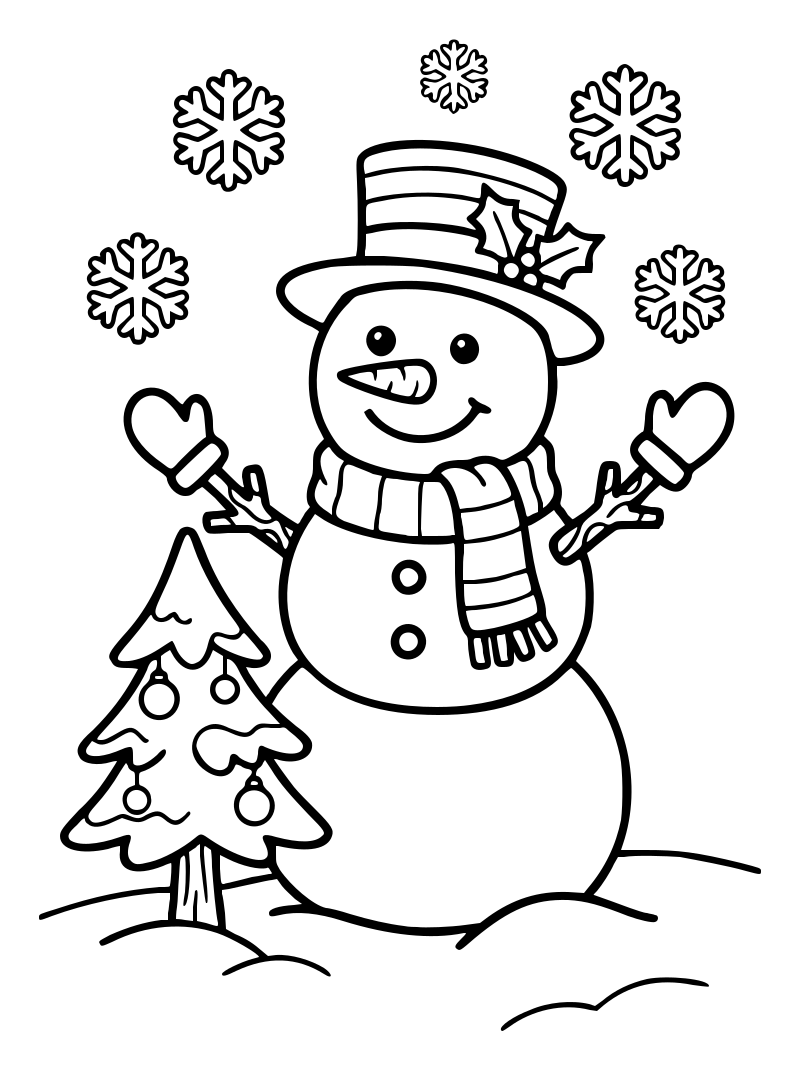
When to use Custom Scale: if you want a smaller picture for a card or a bookmark, try 50% for a half-size image. If you want a bigger, chunkier outline for a preschooler, the printer cannot make the sheet larger, so choose an easier design with bigger shapes instead, such as the Snowman with Top Hat.
Margins and orientation
- Leave margins at the default. Shrinking them to zero on a printer that cannot print borderless just moves the cut-off problem somewhere else.
- Most coloring pages are portrait (tall). If the preview shows a sideways page with a lot of empty space, switch Orientation to the other option.
- Always glance at the print preview. If the outline touches the edge of the preview, switch to Fit.
Step 3: Pick paper for the tool, not the other way around
Paper weight in the US is printed in pounds, which is confusing because different paper grades are weighed at different sheet sizes. Xerox's conversion guide lists 20 lb bond (standard copy paper) as about 75 gsm, and 65 lb cover (a light cardstock) as about 176 gsm, more than twice as heavy per square meter. The same guide notes that the industry allows a 5% variation either way, so two "20 lb" papers can feel slightly different.
| Coloring tool | Paper that works well | Why |
|---|---|---|
| Crayons | 20 lb copy paper (about 75 gsm) | Cheap, and crayons do not soak through |
| Colored pencils | 20-24 lb copy paper | Smooth enough for layering; 24 lb is about 90 gsm |
| Washable or felt-tip markers | 65 lb cover cardstock (about 176 gsm) | A thicker sheet resists show-through and tearing |
| Watercolor or paint sticks | 65-80 lb cover cardstock | Less wrinkling when damp |
Two practical cautions:
- Check your printer's limits. Heavier paper is thicker, and not every home printer feeds it. Your printer's manual or support page lists the heaviest paper it supports and which tray to use.
- Match the paper type setting. If your print dialog has a paper or media type menu with a cardstock or heavy-paper option, select it when you load cardstock.
If you are not sure which tool suits a child's age, our guide on crayons, colored pencils or markers walks through it.
Step 4: Save ink on line art
Coloring pages are mostly white space with black lines, so they are already cheap to print. You can make them cheaper:
- Print in black only. HP's support page explains that choosing "Black and white," "Monochrome," "Black Ink Only," or "Grayscale" uses only the black cartridge. Avoid "High Quality Grayscale," which HP notes uses all the colors plus black.
- Use draft quality. HP recommends selecting Draft or EconoMode under Print Quality to use less ink. Expect the lines to look a bit lighter; for coloring that is often fine, and you can switch back to Normal if they look too faint.
- Print a test sheet first. Before you print 25 copies of a Christmas category page for a class, print one and check the size and line darkness.
HP also notes that some printers still use a little color ink for routine nozzle maintenance even in black-only mode, so do not be surprised if the color cartridges drop slightly over time.
Step 5: Printing from a phone or tablet
You do not need a computer. On an iPhone or iPad, Apple's AirPrint instructions are:
- Make sure the phone and the printer are on the same Wi-Fi network, and that the printer supports AirPrint.
- Open the coloring page in the app you are viewing it in (Safari, Files, Photos).
- Tap the Share button (or the Actions button with three dots), scroll down, and tap Print.
- Tap No Printer Selected and choose your printer.
- Set the number of copies and other options, then tap Print in the upper-right corner.
Apple notes that not every app supports printing; if you cannot find the Print option, save the image to Photos or Files and print from there.
On Android phones, the Print option is usually in an app's menu or Share sheet; the exact steps vary by phone and printer brand, so your printer maker's support site is the best place to check if your printer does not show up.
If you colored a page on screen first and want to print the finished picture, see how to color online on a tablet or phone.
Quick troubleshooting checklist
| Problem | Most likely fix |
|---|---|
| Edges cut off | Scaling to Fit; confirm paper size |
| Picture is tiny in the middle | Scaling set to a low custom percentage; switch to Fit |
| Big blank strip at top and bottom | Letter file printed on A4; this is normal with Fit |
| Lines look gray and faint | Switch from Draft to Normal quality |
| Markers show through | Use 65 lb cover cardstock |
| Printer jams on cardstock | Check the maximum paper weight and recommended tray in your printer's manual |
Once your settings are right, write them on a sticky note by the printer, and you can print a whole stack of winter pages the same way next time.
Frequently asked questions
Why does my coloring page get cut off at the edges?
The page is usually printing at Actual Size on a sheet whose printable area is smaller than the file. Choose Fit (or Fit to page) in the print dialog so the whole image is scaled into the printable area.
Can I print a Letter-size coloring page on A4 paper?
Yes. Pick A4 as the paper size and choose Fit. The image shrinks slightly to match A4's narrower width, and you get a little extra white space at the top and bottom.
What paper should I use for markers?
Plain 20 lb copy paper works for crayons and colored pencils. For markers, a heavier sheet such as 65 lb cover (about 176 gsm) cardstock holds up better and is less likely to show color on the back. Check that your printer accepts it first.
Sources
- Adobe - Adjust page size for printing PDFs in Acrobat
- HP Support - Worldwide Media and Paper Sizes - Inches and Metric
- Xerox Support - Convert Paper Weight From Pounds (lbs) to Grams Per Square Meter (gsm)
- HP Support - HP inkjet printers - Print in black and white
- Apple Support - Use AirPrint to print from your iPhone or iPad